Why Blacking Out a PDF Isn't Enough: Hidden Metadata and Redaction Gaps
The rectangle is a drawing instruction, not a deletion. What stays in the file, and the order of operations that actually removes it.
Somebody opens a contract, drags a filled black rectangle across the paragraph nobody outside the building should read, saves the file and sends it. The page looks exactly right. Anyone receiving it can select the area, press copy, and paste the sentence they were never meant to see.
This failure is not rare and it is not a bug. It follows directly from how the format works, and it keeps happening because the result looks so convincing on screen. Proper PDF redaction needs a different mental model — and it is only half the job, because the file also describes its own origins in ways the page never shows.
Why the black box fails
A page in this format is not a picture. It is a sequence of drawing instructions executed in order: set a font, move to a coordinate, show these characters, fill this shape with this colour. The viewer follows the list from top to bottom, and whatever is drawn later appears over whatever came before.
Adding a rectangle appends one more instruction at the end. The earlier instruction that placed the characters is untouched — it still sits in the content stream, still carries its coordinates, still knows which font it used. The rectangle hides it from a human eye and from nothing else.
Three everyday operations recover it. Selecting the area and copying returns the characters, because text selection walks the content stream rather than reading pixels. Any extraction utility produces the full page as plain text. And searching the document finds words beneath the box, which is often how somebody discovers the problem by accident.
The rule to remember: covering is a visual effect, redaction is a destructive edit. If the characters were not removed from the page description, they were not redacted — however convincing the rectangle looks.
Highlighting is worse than drawing
Marking text with a black highlight feels equivalent and is weaker. Highlights are annotations, a layer that sits apart from the page content precisely so readers can toggle, move or delete them. Removing an annotation takes two clicks in a free reader, and the words reappear intact.
Why it looks fine during review
Nobody catches this at the checking stage, because checking means looking. The person who applied the box sees a black box. So does their manager. The failure only becomes visible when someone interacts with the file as data rather than as a page, which is exactly what a journalist, an opposing lawyer or an automated indexer will do.
The second problem: what the file says about itself
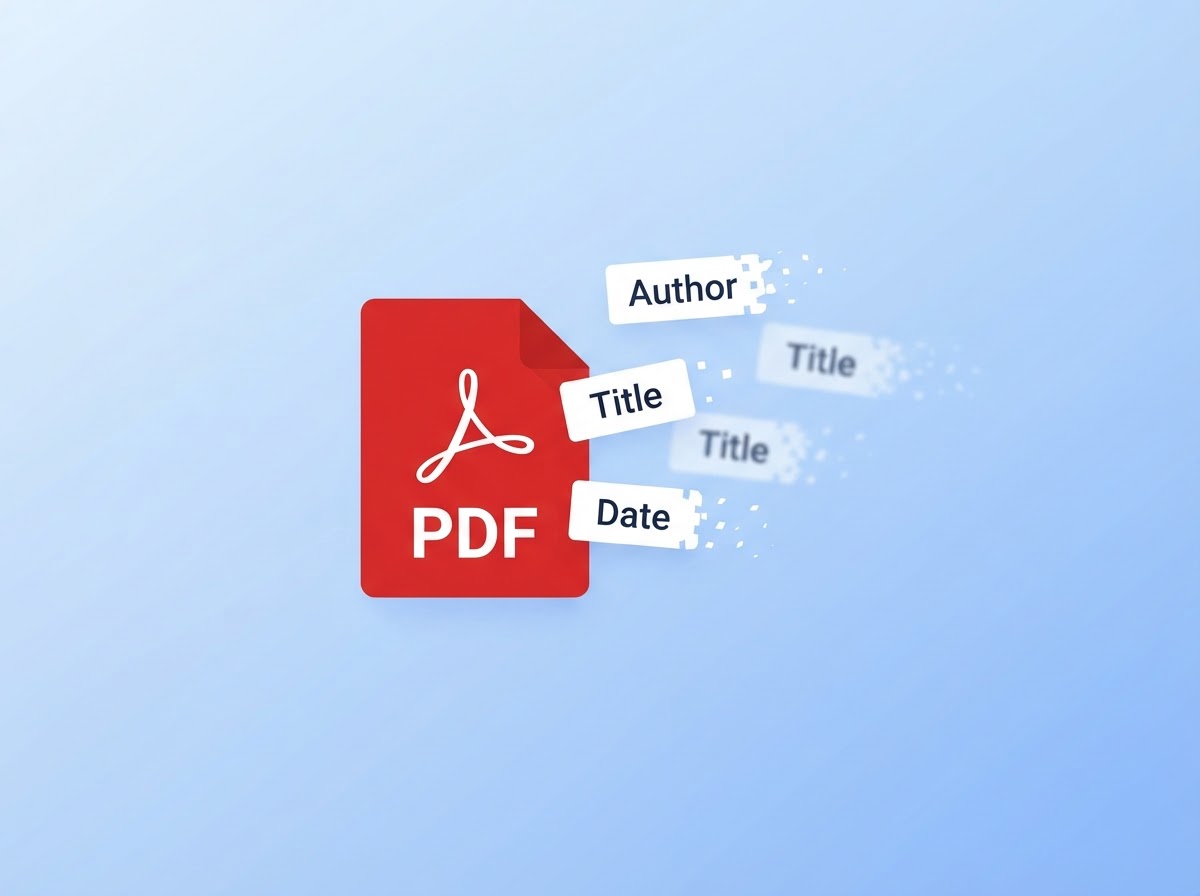
Even a perfectly redacted page sits inside a container that keeps its own records. These are stored separately from the visible content and survive every editing operation that does not deliberately address them.
The document information dictionary
A small set of entries: title, author, subject, keywords, creator — the application the content was written in — and producer, the library that generated the actual file. Plus creation and modification stamps. The author entry very often holds a real person's name, inherited from whichever account exported the document.
The XMP packet
Many files also carry an XML block repeating much of the dictionary and adding more: a persistent document identifier, an instance identifier updated on each save, and sometimes a history of the tools that processed it. The identifier is the interesting one, because it links separate exports back to a single source document.
Everything else a PDF can hold
- Embedded files. Attachments carried inside the document, which readers do not display by default.
- Incremental update history. The format appends changes rather than rewriting, so earlier states can persist inside the same file.
- Form field values. Filled-in data stored separately from the page it appears on.
- Bookmarks and structure tags. Outline entries that can name sections removed from the visible text.
- Embedded font subsets. Occasionally revealing which corporate font pack produced the file.
If you want the wider picture of how these blocks relate to the ones in images, our guide to EXIF, XMP, IPTC and ICC sets out the four standards side by side.
What we observed in a controlled test
To describe this accurately rather than from memory, we built a small test file and worked through the common approaches. The method: a one-page document containing a line of sensitive wording, exported from a word processor, then treated four ways. After each treatment we selected the page text, pasted it into a plain editor, and separately read the document's own property entries.
| What we did | Hidden text recoverable? | Author and producer entries |
|---|---|---|
| Drew a filled black rectangle over the line | Yes — pasted in full | Both still present |
| Applied a black highlight annotation | Yes — and the box was deletable | Both still present |
| Deleted the wording in the source, re-exported | No | Both present, newly written |
| Re-exported, then stripped the metadata | No | Cleared |
The third row is the one worth dwelling on. Removing the words at source solved the text problem completely and left the attribution problem entirely untouched — in fact it refreshed it, because the export stamped a new modification time and named the exporting application. Only the combination of both steps produced a file we would be comfortable releasing.
This is a narrow test of one document and our own tooling, not a survey of every reader on the market. We mention it because the pattern — fix one layer, create a new record in another — is the thing people miss.
How to redact properly
Work in this order. Each step addresses a different layer, and doing them out of sequence undoes earlier work.
- Edit the source, not the export. If you still have the original word processor file, delete the sensitive passage there and produce a fresh document. Nothing beats the text never being written in the first place. Clean that source file too — our guide to removing metadata from Word documents covers the properties and the revision layer it leaves behind.
- Use a genuine redaction function if you have one. Professional editors distinguish between marking an area and applying the redaction, and the second action removes the underlying content. Applying it is a separate, deliberate command — marking alone changes nothing.
- Where no such function exists, rasterise. Converting pages to images guarantees nothing selectable survives. Accept the trade-offs honestly: the document loses its searchability and becomes inaccessible to screen readers, which matters for anything published to the public.
- Strip the metadata last. Every preceding step writes new entries, so cleaning them has to come at the end. Our PDF metadata remover clears the information dictionary and the XML packet in your browser, with the file never leaving your device.
- Verify as an adversary would. Open the finished file, select all, paste into a plain text editor and read what appears. Then inspect the properties in our metadata viewer. Two checks, both quick, and they are the only evidence that counts.
The order is not optional. Cleaning the metadata and then re-exporting the document simply regenerates the entries you removed. Treat metadata removal as the final action before the file is sent, not as a tidying-up step somewhere in the middle.
Approaches that do not work
Changing the text colour to white. Invisible to the eye, fully present in the content stream, and recovered by the same copy-paste that defeats a rectangle.
Covering with an opaque image. Same mechanism as the rectangle, same outcome. The image is simply another drawing instruction.
Setting a password or restricting permissions. Permission flags are requests that readers may honour or ignore, and plenty ignore them. Encryption protects the file at rest; it does nothing once the recipient has opened it.
Cropping the page. Cropping adjusts the visible boundary and leaves the content outside it in the file. Anyone can widen the box again.
Trusting the preview thumbnail. Some documents embed a page preview generated before your edit, which can still depict the original state.
Why this is worth taking seriously
Document handling is treated as a real disclosure route by the people who investigate breaches. CISA's guidance on handling documents addresses it directly, and the UK Information Commissioner's Office expects organisations to control what they release rather than hope nobody looks. From an engineering angle, NIST SP 800-122 makes the related point that information which seems harmless alone can identify someone once it is combined with something else — which is precisely what an author name plus a document identifier achieves.
The broader argument for treating this layer as personal data is set out in our guide to metadata privacy.
Frequently Asked Questions
Why can people still read text under a black rectangle?
Because a PDF keeps drawing instructions in layers and a rectangle is simply another instruction placed on top. The characters beneath it remain in the content stream with their coordinates intact, so selecting, copying or extracting the page returns them exactly as they were written.
Is highlighting text in black any safer?
It is worse, because a highlight is an annotation rather than page content. Annotations can be hidden, moved or deleted in most readers without touching the page itself, so the words underneath reappear the moment somebody removes the markup layer.
Does flattening a PDF remove the hidden text?
Flattening merges annotation layers into the page, which stops a reader from simply deleting the box. It does not necessarily discard the character data in the content stream, so treat it as one step rather than as a complete solution on its own.
What metadata does a PDF keep about me?
A document information dictionary holding title, author, subject, keywords, the creating application and the producing library, plus creation and modification stamps. Many files also carry an XML packet repeating much of that, and some embed attachments or earlier revisions.
Will printing to PDF clean the file?
Re-printing does rebuild the page description, which usually discards selectable text sitting under a drawn shape. It also writes fresh metadata naming your printer driver and account, so you remove one exposure while introducing another.
Is converting pages to images a reliable method?
It is thorough for text, because nothing selectable survives a rasterisation. The costs are real though: the document stops being searchable, becomes unusable with a screen reader, and grows considerably in size. Reserve it for genuinely high-stakes releases.
How do I verify that a redaction actually worked?
Open the finished file, select all of the text on the page and paste it somewhere plain. If the hidden wording appears, nothing was removed. Then inspect the file in a metadata reader to confirm the author and producer entries are also gone.
Does a password or permission setting protect redacted content?
No. Permission flags ask a reader to behave politely and are routinely ignored by other software. Encryption protects a file while it is locked, but once somebody can open the document the hidden text inside it is available to them.
Conclusion
The black rectangle persists because it satisfies the only test most people apply, which is looking at the page. The format does not share that definition of success. Underneath the drawing, the sentence is still sitting there with its coordinates and its font.
So treat redaction as deletion followed by verification. Remove the words at source where you can, apply a real redaction command where you cannot, strip the document's self-description afterwards, and then test the result by trying to defeat it yourself.
Clear the metadata from a PDF for free in your browser — nothing is uploaded, and the original file on your device stays exactly as it was.
Sources
- CISA — Handling and destruction of unneeded documents
- UK Information Commissioner's Office — Data sharing guidance
- NIST SP 800-122 — Guide to Protecting the Confidentiality of PII
- Library of Congress — PDF format description
- Adobe — Extensible Metadata Platform (XMP)
The test described above was run on our own sample document in October 2026 and is not a survey of any specific commercial editor. Nothing here is legal advice. External links open in a new tab.