How to Remove Metadata From Word and Office Documents (Author, Comments and Tracked Changes)
The properties that identify you, the editing history that embarrasses you, and the two reliable ways to clear both.
A document is a record of a conversation as much as a finished text. It remembers who started it, who touched it afterwards, how many times it was saved, how long people spent inside it, and — if nobody intervened — every sentence that was argued over and withdrawn.
Most of that is invisible when you open the file normally, which is why proposals leave offices carrying a rival client's name in the creator field, and why withdrawn paragraphs resurface in the recipient's copy. If you need to remove metadata from Word before a file goes out, there are two dependable routes and one very common mistake.
What an Office file keeps about you
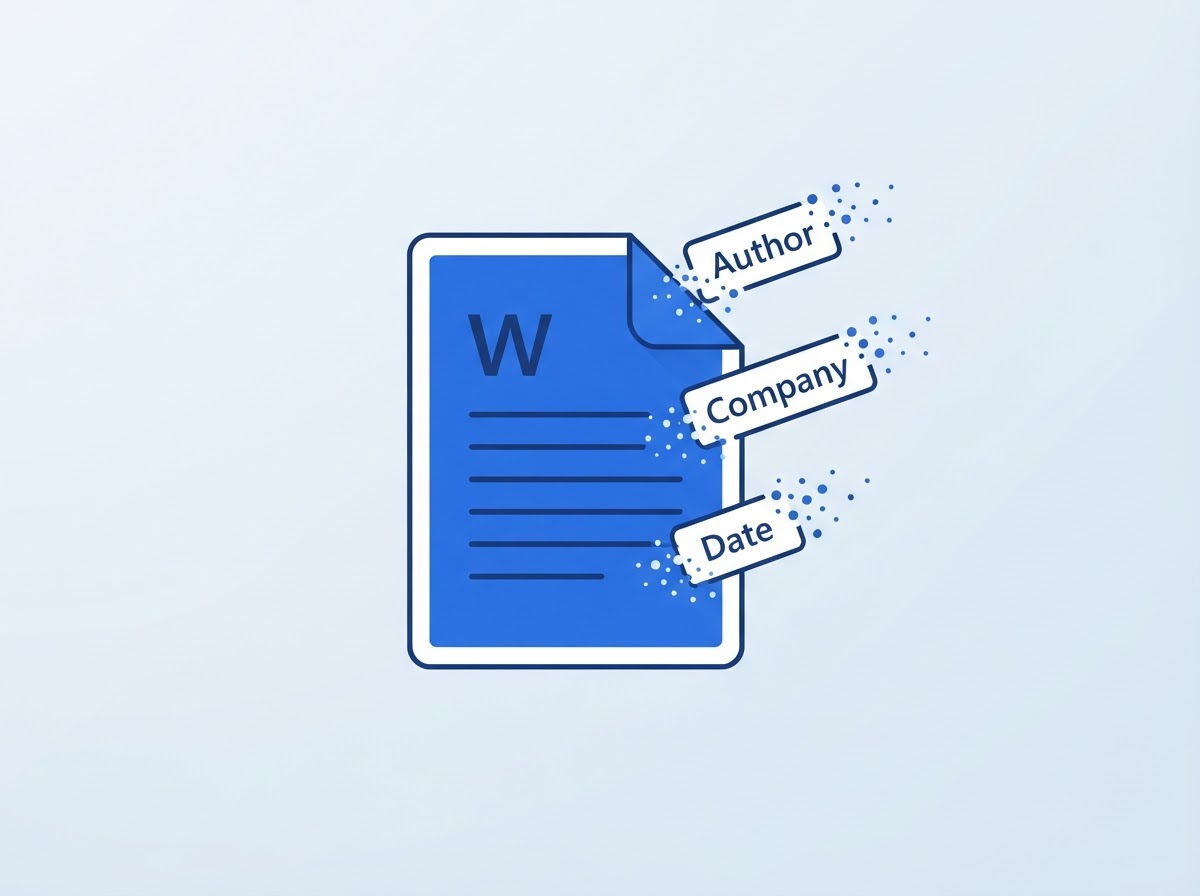
Modern Office formats are not single blobs. A .docx is a compressed archive containing a folder structure of XML parts, and several of those parts exist purely to describe the document rather than to hold its words. You can confirm this yourself by renaming a copy to end in .zip and opening it — the properties live in a folder named docProps.
Core properties
The headline offenders. A creator name, a last-modified-by name, a title and subject if anyone filled them in, keywords, a category, and creation and modification stamps accurate to the second.
Application properties
Generated automatically and rarely considered: the organisation the software was registered to, the template the document grew from, a revision counter, a cumulative editing duration, page and word totals, and the producing application's version string.
Custom properties
Anything a business process attached — matter numbers, client codes, classification labels, workflow identifiers. These are the most organisation-specific and often the most sensitive, because they were never meant to leave the building.
The revision layer
Separate from properties and far more damaging. Tracked revisions hold withdrawn wording alongside the name of whoever proposed it. Comment threads hold candid internal discussion. Hidden text holds whatever somebody parked behind a formatting attribute. All of it ships inside the document unless it is explicitly resolved.
The distinction that matters: properties describe the file, while the revision layer preserves earlier states of the text. Clearing the first does nothing to the second. A document can show an empty author field and still contain a rejected paragraph naming a price you no longer offer.
Why it matters in practice
Four situations account for most of the damage we hear about.
Job applications. A curriculum vitae built from a friend's template arrives at an employer bearing the friend's name as creator and a revision count betraying how many versions preceded this one.
Competitive bids. A tender response reuses last quarter's submission. The custom properties still carry the previous client's matter code, and the comment thread still contains the internal note about the discount ceiling.
Legal and regulatory disclosure. Documents released under an access request are routinely examined for their hidden layers. The UK Information Commissioner's Office treats careless file handling as a genuine disclosure route, and guidance from CISA makes a similar point about documents that are circulated without being checked first.
Anonymity. If a document is supposed to be unattributable, a creator name defeats the whole exercise in one field.
Method one: the Document Inspector
Microsoft ships a cleaning function and it is capable, provided you use it in the right order. Its behaviour is set out in Microsoft's own documentation.
- Duplicate the file first. What follows deletes content permanently, and the undo history will not rescue you afterwards. Keep the untouched original somewhere private.
- Resolve the revisions yourself. Open the Review ribbon, accept or reject every tracked change, then delete the remaining comments. Do this before inspecting, so the text that survives is the text you chose rather than whatever an automated pass left behind.
- Reveal hidden text. Still in Review, switch the markup display to show everything, and check the Home ribbon's formatting marks so concealed passages become visible. Delete anything that should not travel.
- Run the inspection. Choose File, then Info, then Check for Issues, then Inspect Document. Tick the categories offered — properties and personal information, comments and revisions, headers and footers, hidden text, invisible content — and press Inspect.
- Remove what it found. Each category with a result gets its own Remove All button. Press them deliberately and read what each one covers; removing headers and footers also removes page numbering.
- Check the Info panel. Return to File, then Info, and confirm the author, company and last-saved-by entries are now blank.
Two caveats. The inspection is not available in the browser-based editions of Office, only in the desktop applications. And saving the document again after inspecting it re-stamps the modification time and may reinstate the author name from your account profile, so inspect last rather than first.
Method two: clean it in a browser
If Office is not installed, or the document arrived from elsewhere and you simply want it neutral, the archive structure makes a different approach possible. The property parts can be rewritten directly without any editor being involved.
That is what our document metadata remover does. It opens the package inside your browser, clears the core, application and custom property parts, and hands back a rebuilt file. The document never travels to a server, which matters when the thing you are cleaning is confidential in the first place.
- Open the cleaner and choose your .docx, .xlsx or .pptx file.
- Read the list of properties it found — this is often the first time people see the editing duration.
- Clean the file and save the rebuilt copy.
- Confirm the result in our metadata viewer, which reports the same three property families for Office formats.
An honest limitation. A property cleaner rewrites properties. It does not adjudicate your tracked revisions or delete your comment threads, because those are editorial decisions about the text itself. If the revision layer matters, resolve it in Word first and clean the properties afterwards.
What we found when we looked inside
We assembled a plain test document to see what a routine workflow leaves behind. The method was simple: create a file, type a few paragraphs, invite a second account to add a tracked suggestion and a comment, accept the suggestion, save, then unzip the result and read the property parts directly rather than through any application's interface.
| What we looked for | Still present? | Note |
|---|---|---|
| Creator name | Yes | Taken from the signed-in account profile |
| Last modified by | Yes | Named the second contributor |
| Revision counter | Yes | Incremented on every save |
| Total editing time | Yes | Recorded in minutes |
| Template name | Yes | Present even for a blank start |
| Accepted revision text | No | Correctly merged into the body |
| Comment thread | Yes | Required manual deletion |
Nothing here is a flaw in the software. Every one of those entries exists to support collaboration, version tracking and search. They become a problem only at the moment the file crosses an organisational boundary, which is the moment nobody is thinking about them.
The mistake: exporting to PDF and assuming it is clean
This is the most common misconception we are asked about. Converting to PDF feels like flattening, and visually it is. Underneath, the export typically carries the title and author across into the new document information dictionary and adds the name of the producing application.
So you have changed container and kept the attribution. If a PDF is the deliverable, clean it as a PDF: our PDF metadata remover clears the information dictionary and the XML packet together. And if the document contained anything you blacked out before exporting, read why blacking out a PDF is not enough before you send it, because a drawn rectangle is not a deletion.
Habits that prevent the problem
- Set your display name deliberately. Whatever your Office profile says is what gets written into every document you create. Decide whether that should be your full legal name.
- Start sensitive documents from blank. Reusing a previous file inherits its properties and sometimes its custom fields.
- Resolve revisions as you go. A document that was never allowed to accumulate a long annotation history has far less to leak.
- Clean at the point of sending. Not when you finish writing — a later save will undo some of the work.
- Treat attachments like published material. The considerations are the same ones in our pre-sharing checklist, which applies to files as much as to photographs.
Frequently Asked Questions
What personal information does a Word file actually store?
The core properties hold a creator name, the person who saved it last, the organisation the software was registered to, creation and modification stamps, a revision counter and a cumulative editing duration. Templates, printer names and routing details may also be recorded depending on how the document was produced.
Does the Document Inspector delete tracked changes?
It reports them and can strip the annotation layer, but relying on that is risky. Resolve every revision yourself beforehand, so the wording in the file is the wording you intend. Treat the inspector as a safety net rather than as the editing step itself.
Why does a colleague's name appear on a document I wrote?
Because the creator entry belongs to whoever produced the original file, and starting from a shared template carries that name forward. Saving under a new filename does not reset it. Only clearing the property itself, or inspecting the document, removes the inherited credit.
Is saving as a PDF enough to clean a document?
No, and this trips up a lot of people. The export usually copies the title and author across into the new file and adds the producing application's own name. You end up with a different container holding much the same identifying information.
Can I clear this without installing Microsoft Office?
Yes. Because the modern formats are archives of XML parts, a browser can open the package, rewrite the property files and repackage it without any desktop software involved. Our document cleaner does exactly that, entirely on your own machine.
What is hidden text and why does it matter?
It is ordinary text marked with a formatting attribute that stops it being displayed or printed. The characters remain in the file and reappear the moment someone toggles the setting. People use it to park draft wording, which is precisely what should not travel with a finished document.
Do Excel and PowerPoint carry the same risks?
They carry the same property set plus their own hazards. Workbooks hide worksheets, cached query connections and off-screen cell ranges, while presentations retain speaker notes and slides left off the running order. The inspection process covers all three applications.
How can I check whether the cleanup worked?
Open the finished file in a reader that was not involved in producing it. Our viewer lists the core, application and custom properties for Office formats, so an empty report there is meaningful evidence rather than the editor reassuring you about its own work.
Conclusion
Two things leave an Office file: the properties that name you and the revision layer that remembers the argument. They are cleared by different actions, and doing only one of them is the usual failure.
So resolve the revisions in the editor, clear the properties with whichever tool is to hand, and confirm the outcome in something that was not involved in producing the file. Three steps, and they take less time than writing the covering email.
Clean a Word, Excel or PowerPoint file for free in your browser — nothing is uploaded, and the original on your machine is left exactly as it is.
Sources
- Microsoft Support — Remove hidden data and personal information by inspecting documents
- UK Information Commissioner's Office — Data sharing guidance
- CISA — Handling and destruction of unneeded documents
- NIST SP 800-122 — Guide to Protecting the Confidentiality of PII
Menu paths reflect current desktop releases of Microsoft Office as of October 2026. External links open in a new tab.